
The IDE agent’s home turf
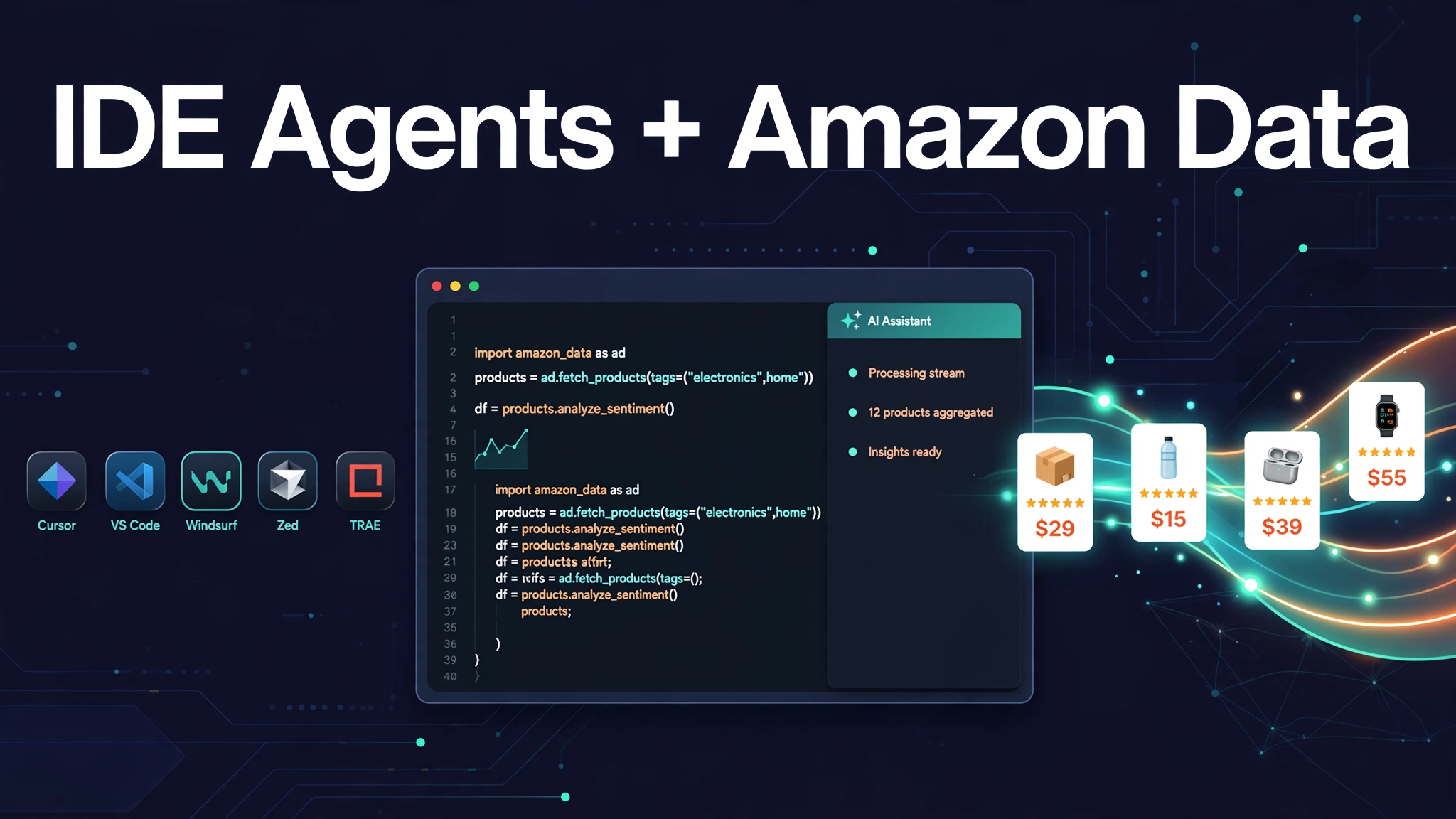
The agents covered so far in this series live in a terminal (Claude Code), a chat window (ChatGPT), or a desktop shell (Workbuddy). IDE agents live somewhere else: inside the editor, next to your code. That one difference changes what the agent can do with Amazon data — not just answer questions about it, but land the answer in the repository and prove it works.
The general argument for why agents need live Amazon data instead of stale snapshots is made in the pillar guide and is not repeated here. This article covers one thing: how to wire Pangolinfo’s Amazon Data MCP into the five IDEs that support MCP, and what the resulting edit-run-fix loop looks like.
A standalone agent works from a prompt plus an API response. It can describe a fix, draft code in a chat box, and hand it back to you. The rest — pasting it into the right file, running the tests, reading the failure, fixing the fix — is still your job.
An IDE-resident agent closes that loop in one place, because it already has the tools a developer uses:
- It reads the actual codebase, not a pasted snippet. Cursor’s Agent mode searches and explores the project; VS Code’s Copilot agent reads the active file and the files you reference; Zed’s Agent Panel reads, greps, and navigates the project tree.
- It writes and edits files in place, with review built in. VS Code shows diffs you can accept or revert per request; Zed offers per-hunk accept/reject plus a Restore Checkpoint button; Windsurf’s Cascade reverts edits via checkpoints.
- It runs the project’s own commands — the test suite, the build, the linter — and reads the output. Zed’s agent can call
diagnosticsto check a file for type errors right after editing it; Windsurf’s Cascade can take Problems-panel errors and fix them. - It iterates. When the test fails, the agent sees the failure output in the same session and tries again. No copy-pasting between tools.
Connect an MCP server to that loop, and the loop gains live external data. The agent can fetch real Amazon product, price, review, and ranking data for the exact ASINs your project cares about, then implement and verify the handling code against real responses instead of mocked fixtures. That is the whole article in one sentence: the IDE agent turns “Amazon data as an answer” into “Amazon data as a verified commit.”
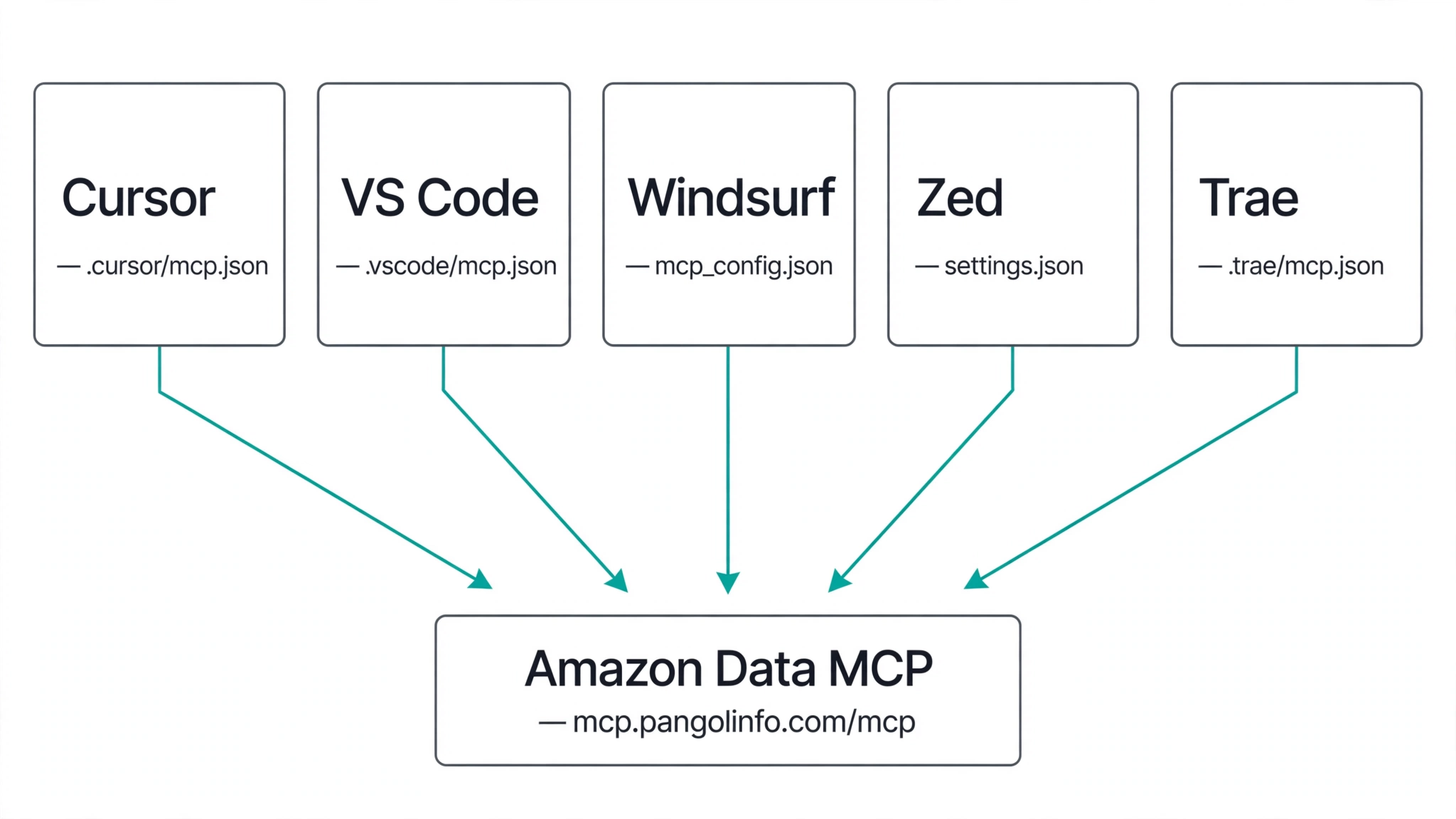
Five IDEs, five config files
Every IDE below speaks MCP, but each keeps its configuration in a different place, with a different JSON shape. All five examples point at the same Pangolinfo endpoint — https://mcp.pangolinfo.com/mcp — and authenticate with an API key. Two header forms both work: Authorization: Bearer <key> (the form Pangolinfo’s own MCP client uses) or x-api-key: <raw key>. The examples below use the Bearer form; swap in x-api-key if you prefer.
One security rule applies identically to all five: never paste a raw API key into a config file that might end up in git. Each IDE offers a way to keep the secret out of the file — an environment-variable reference, a prompt, or a user-level file that is not committed. The per-IDE notes below say which.
Cursor
Config file: ~/.cursor/mcp.json (global) or <project>/.cursor/mcp.json (project-level). The top-level key is mcpServers. Restart Cursor after editing.
{
  "mcpServers": {
    "pangolinfo-amazon-data": {
      "url": "https://mcp.pangolinfo.com/mcp",
      "headers": {
        "Authorization": "Bearer ${env:PANGOLINFO_API_KEY}"
      }
    }
  }
}${env:PANGOLINFO_API_KEY}reads the key from your shell environment. If you write the key inline instead, it sits in plaintext in the file — and in a project-level file, it can be committed by accident.- No
typefield is needed for a remote entry;type: "stdio"is only for local-command servers. - Enable it: Settings → Cursor Settings → MCP & Integrations → + New MCP Server. Per-server toggles live under Customize; connection errors surface in the Output panel under MCP Logs.
- Approval model: connecting a server requires approval, and each tool call requires approval unless the tool is on an MCP allowlist. Reads and workspace file edits run without approval by default; terminal commands require approval unless allowed by a Run Mode.
- What we could not verify: the minimum Cursor version for MCP support, and whether global or project config wins on conflict. Cursor’s official docs are JavaScript-rendered and could not be read directly; the config shape above is corroborated by multiple independent setup guides.
VS Code (with GitHub Copilot)
Config file: .vscode/mcp.json in the project (VS Code format, top-level key servers), or the portable .mcp.json at the project root (top-level key mcpServers), or a user-profile mcp.json. The guided flow is Command Palette → MCP: Add Server. Prefer the portable destinations for new servers.
{
  "servers": {
    "pangolinfo-amazon-data": {
      "type": "http",
      "url": "https://mcp.pangolinfo.com/mcp",
      "headers": {
        "x-api-key": "${input:pangolinfo-api-key}"
      }
    }
  },
  "inputs": [
    {
      "type": "promptString",
      "id": "pangolinfo-api-key",
      "description": "Pangolinfo API key",
      "password": true
    }
  ]
}
type: "http"is required for remote servers in the VS Code format. Theinputsblock makes VS Code prompt you for the key once and store it securely — the key never lands in the config file. VS Code’s own guidance is explicit: “Avoid hardcoding sensitive information like API keys. Use input variables or environment files instead.”- Trust: when you start a server, VS Code asks you to confirm you trust it. Workspace-configured servers inherit Workspace Trust; trust can be reset via MCP: Reset Trust.
- Tool control: the Configure Tools button in chat input lists every tool the server exposes and lets you toggle individual tools. You may be asked to confirm each tool invocation.
- Requirements: MCP support is generally available in VS Code 1.102+, and MCP tools work in Agent mode (not Ask or Edit mode). A GitHub Copilot subscription is required.
- Beyond tools: VS Code’s MCP support also covers resources (attach via Add Context → MCP Resources), prompts (invoke as
/<server>.<prompt>), and MCP Apps (interactive UI rendered inline in chat).
Windsurf
Config file: mcp_config.json — open it through the UI rather than hand-typing a path: in the Cascade panel, click the ... (Actions) menu → the Open MCP config file icon. The top-level key is mcpServers.
{
  "mcpServers": {
    "pangolinfo": {
      "serverUrl": "https://mcp.pangolinfo.com/mcp",
      "headers": {
        "x-api-key": "${env:PANGOLINFO_API_KEY}"
      }
    }
  }
}- The field is
serverUrl(orurl) — do not add atypeortransportfield; neither appears in Windsurf’s official examples. ${env:VAR}interpolation works inheadersandserverUrl. A${file:/path/to/file}form is also supported. Literal keys in the file sit in plaintext.- Enable it: the MCPs section in the Cascade panel lists configured servers and their tool counts, with a toggle per server. Individual tools can be disabled via the server’s
disabledToolsarray. - Tool cap: Cascade has a limit of 100 total tools across all MCP servers at any time. If you connect several MCP servers, you may hit this — the docs do not say what happens at the cap.
- Rebrand caveat: Windsurf’s current docs describe the editor as Devin Desktop, with Cascade as the legacy agent. The MCP configuration above is documented for Cascade; whether the same file configures the newer Devin Local agent is not stated in the official docs. If you use Devin Local, verify against current docs before assuming the config carries over.
- Team admins can allowlist approved MCP servers; once even one server is allowlisted, all non-allowlisted servers are blocked for the team.
Zed
Config file: Zed has no separate MCP file. Servers live in settings.json under the top-level key context_servers. Open the file via the zed: open settings file action. A project-level .zed/settings.json can also hold servers, but it only takes effect after you trust the worktree (Restricted Mode blocks it until then); global servers are exempt from the trust gate.
{
  "context_servers": {
    "pangolinfo": {
      "url": "https://mcp.pangolinfo.com/mcp",
      "headers": {
        "Authorization": "Bearer YOUR_PANGOLINFO_API_KEY"
      }
    }
  }
}- The official example shows exactly two fields —
urlandheaders. Do not addtype,transport,serverUrl,source, orenabled. - Enable it: Settings → AI → MCP Servers → Add Server → Add Remote Server. The server row shows a status dot — green with tooltip “Server is active” means it is running.
- Per-tool approval:
agent.tool_permissions.defaultcontrols it —confirm(the default) prompts before any tool action including MCP calls,allowauto-approves,denyblocks all. Per-tool rules use the key formatmcp:<server>:<tool_name>. - OAuth: if a remote server has no
Authorizationheader configured, Zed prompts for OAuth. Pangolinfo uses an API key, so this path does not apply. - Feature coverage: Zed supports MCP Tools and Prompts only — not Sampling, Discovery, or Elicitation.
- Secret handling: the official docs show the key as a literal value in
settings.json, and do not document a keychain or environment-variable mechanism for MCP headers. Prefer the global (user)settings.jsonover a project.zed/settings.jsonfor any entry containing a key, and never commit a settings file containing a key.
Trae
Trae is the one IDE in this article whose MCP configuration we could not verify directly from official documentation — the docs site could not be fetched during research, and every detail below is secondary-sourced. Treat the config as a starting point to check against Trae’s live docs, not as confirmed.
Reported config file: <project>/.trae/mcp.json (project-level) or ~/.trae/mcp.json (global). Reported format:
{
  "mcpServers": {
    "pangolinfo-amazon-data": {
      "url": "https://mcp.pangolinfo.com/mcp",
      "headers": {
        "x-api-key": "YOUR_PANGOLINFO_API_KEY"
      }
    }
  }
}- The
typefield is disputed. Secondary sources disagree: some show notypefield (transport auto-detected fromcommandvsurl), some show"type": "http", some"type": "sse". The minimal form above (notype) is the safest first attempt; if Trae does not recognise the server, try adding"type": "http". - Environment-variable interpolation in
headersis unverified. Do not assume${ENV_VAR}works there — the likely failure mode is Trae sending the literal${…}string. The example above uses a literal key, which means the plaintext-secret warning applies in full: do not commit a project-level.trae/mcp.jsoncontaining a real key. - Enable it (reported): Settings (gear icon) → MCP → Add → Add Manually, then paste the JSON. Project-level config reportedly requires turning on Enable project-level MCP in Settings → MCP first.
- Agent mode: Trae merged its Builder modes into a unified Agent mode; the agent reads project code, proposes multi-file edits with per-file accept/reject in DiffView, runs project commands gated by an auto-run policy, and can call configured MCP servers in the same session.
One loop, end to end
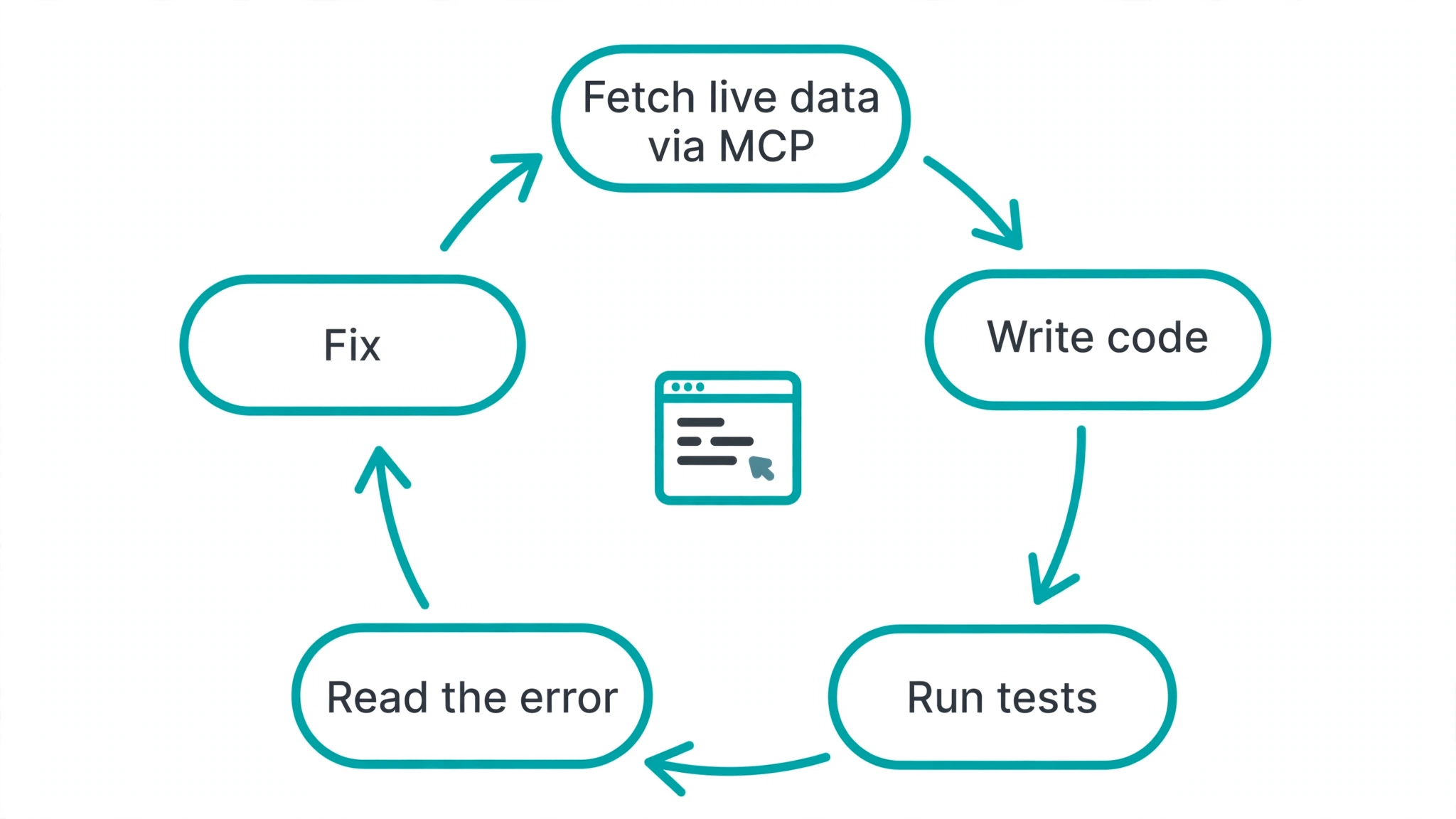
Here is the shape of a real session. It is a scenario, not a tested run — see the honesty note at the end.
You are building a price-monitoring script for a handful of ASINs. You open the project in your IDE, and instead of pasting API docs into a chat window, you ask the agent: “Fetch current prices and review counts for these five ASINs, and write the monitoring script that checks them daily.”
- The agent calls the Pangolinfo MCP tools and gets live data back — real prices, real review counts, for your ASINs.
- It writes the script into the project, in the file where it belongs, using the project’s existing conventions because it can see them.
- It runs the script. The script fails — an auth header is wrong, a field name changed, a response shape is not what the code assumed.
- The agent reads the error output, fixes the code, and runs it again. The second run passes.
- You review the diff, accept it, and the commit contains code that was verified against real data in the same session.
Steps 3–4 are the part no standalone agent can do. A chat agent can guess at the error; the IDE agent reads it. That is the practical meaning of “the agent lives where the code lives.”
What to watch out for
Four honest limits, stated plainly:
- No end-to-end test was run for this article. None of the five configs above was exercised against a live IDE install with the Pangolinfo MCP connected. The configs are transcribed from official docs (Cursor excepted — see its note) and secondary sources (Trae), not from a verified working session. If a config fails on your machine, the first things to check are the field names for that IDE —
serverUrlvsurl,serversvsmcpServers,type: "http"present or absent — because those are exactly where the IDEs differ. - Trae is unverified. Its section is secondary-sourced. Check Trae’s live docs before relying on the config.
- Windsurf’s Devin Local is unconfirmed. The config is documented for legacy Cascade.
- Secrets are the recurring footgun. Every IDE here stores MCP config as JSON on disk. The safe pattern is the same everywhere: keep the key out of the file — environment variable, prompt input, or user-level config — and never commit a config that contains a real key.
Where this fits
This article is one of six companions to the pillar guide, which makes the general case for connecting live Amazon data to AI agents. The siblings cover the other homes an agent can live in: Claude Code for the terminal, ChatGPT for the chat window, Workbuddy for the desktop, and n8n for workflow automation. The right choice is not about which agent is “best” — it is about where the work happens. If the work happens in code, the agent belongs in the IDE.
Config details verified against official documentation for VS Code, Windsurf, and Zed (October 2026). Cursor’s config is corroborated by multiple independent sources; its official docs could not be read directly. Trae’s config is secondary-sourced and unverified. No end-to-end test was run against a live IDE install.